8.6. Modifying the time framework
In this section we will show you how to modify the timeslicing arrangement as well as change the time horizon and benchmark year intervals by modifying the settings.toml file.
This tutorial will build off the default model that comes with MUSE. To copy the files for this model, run:
python -m muse --model default --copy PATH/TO/COPY/THE/MODEL/TO
8.6.1. Modify timeslicing
Timeslicing is the division of a single benchmark year into multiple different sections. For example, we could slice the benchmark year into different seasons, make a distinction between weekday and weekend or a distinction between morning and night. We do this as energy demand profiles can show a difference between these timeslices (eg. electricity consumption is lower during the night than during the day).
To achieve this, we have to modify the settings.toml file, as well as the files within the preset folder: Residential2020Consumption.csv and Residential2050Consumption.csv. This is so that we can edit the demand for the residential sector for the new timeslices.
First we edit the settings.toml file to add two additional timeslices: early-morning and late-afternoon. We also rename afternoon to mid-afternoon. These settings can be found at the bottom of the settings.toml file.
An example of the changes is shown below:
[timeslices.all-year.all-week]
night = 1095
morning = 1095
mid-afternoon = 1095
early-peak = 1095
late-peak = 1095
evening = 1095
early-morning = 1095
late-afternoon = 1095
The total length of the timeslices should add up to 8760; the number of hours in a benchmark year. Whilst this is required, MUSE does not check and enforce this.
Next, we modify both Residential Consumption files. Again, we put the text in bold for the modified entries. We must add the demand for the two additional timeslices, which are numbers 7 and 8. We will also change the demand for heat in the existing timeslices.
Below is the modified Residential2020Consumption.csv file:
RegionName |
Timeslice |
electricity |
gas |
heat |
CO2f |
wind |
solar |
|---|---|---|---|---|---|---|---|
R1 |
1 |
0 |
0 |
0.7 |
0 |
0 |
0 |
R1 |
2 |
0 |
0 |
1.0 |
0 |
0 |
0 |
R1 |
3 |
0 |
0 |
0.7 |
0 |
0 |
0 |
R1 |
4 |
0 |
0 |
1.0 |
0 |
0 |
0 |
R1 |
5 |
0 |
0 |
2.1 |
0 |
0 |
0 |
R1 |
6 |
0 |
0 |
1.4 |
0 |
0 |
0 |
R1 |
7 |
0 |
0 |
1.4 |
0 |
0 |
0 |
R1 |
8 |
0 |
0 |
1.4 |
0 |
0 |
0 |
We do the same for the Residential2050Consumption.csv, but set the demand in 2050 to be triple that of 2020 in every timeslice. See here for the full file.
Once the relevant files have been edited, we are able to run the simulation model using python -m muse settings.toml.
Then, once run, we import the necessary packages:
[1]:
import matplotlib.pyplot as plt
import pandas as pd
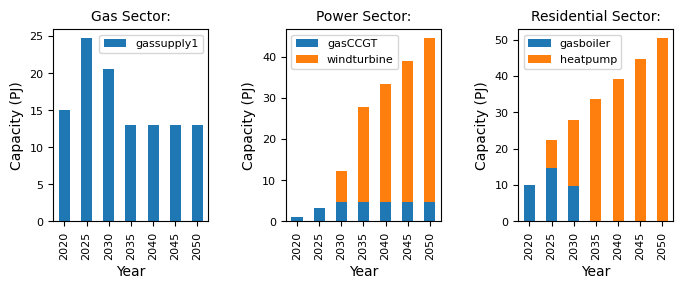
and visualise the relevant data:
[2]:
mca_capacity = pd.read_csv(
    "../tutorial-code/modify-timing-data/1-modify-timeslices/Results/MCACapacity.csv"
)

fig, axes = plt.subplots(1, 3)
all_years = mca_capacity["year"].unique()
for ax, (sector_name, sector_data) in zip(axes, mca_capacity.groupby("sector")):
    sector_capacity = sector_data.groupby(["year", "technology"]).sum().reset_index()
    sector_capacity.pivot(
        index="year", columns="technology", values="capacity"
    ).reindex(all_years).plot(kind="bar", stacked=True, ax=ax)
    ax.set_ylabel("Capacity (PJ)")
    ax.set_xlabel("Year")
    ax.set_title(f"{sector_name.capitalize()} Sector:", fontsize=10)
    ax.legend(title=None, prop={"size": 8})
    ax.tick_params(axis="both", labelsize=8)

fig.set_size_inches(8, 2.5)
fig.subplots_adjust(wspace=0.5)
8.6.2. Modify time horizon and time periods
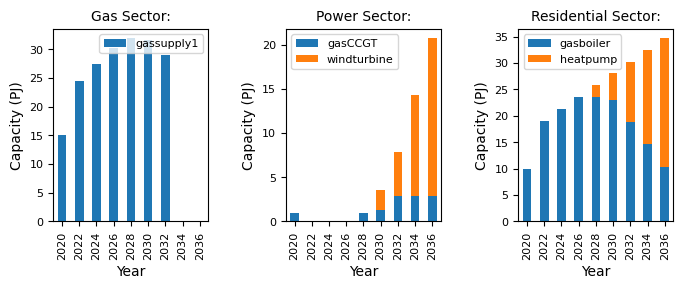
For the previous examples, we have run the scenario from 2020 to 2050, in 5 year time steps per benchmark year. However, we may want to run a more detailed scenario, with 2 year time steps, and up until the year 2040.
We will make this change by modifying the current model. Firstly, we need to change the time framework defined in settings.toml file, as follows:
time_framework = [2020, 2022, 2024, 2026, 2028, 2030, 2032, 2034, 2036, 2038, 2040]
After making these changes, we can re-run the model and visualise the results:
[3]:
mca_capacity = pd.read_csv(
    "../tutorial-code/modify-timing-data/2-modify-time-framework/Results/MCACapacity.csv"
)

fig, axes = plt.subplots(1, 3)
all_years = mca_capacity["year"].unique()
for ax, (sector_name, sector_data) in zip(axes, mca_capacity.groupby("sector")):
    sector_capacity = sector_data.groupby(["year", "technology"]).sum().reset_index()
    sector_capacity.pivot(
        index="year", columns="technology", values="capacity"
    ).reindex(all_years).plot(kind="bar", stacked=True, ax=ax)
    ax.set_ylabel("Capacity (PJ)")
    ax.set_xlabel("Year")
    ax.set_title(f"{sector_name.capitalize()} Sector:", fontsize=10)
    ax.legend(title=None, prop={"size": 8})
    ax.tick_params(axis="both", labelsize=8)

fig.set_size_inches(8, 2.5)
fig.subplots_adjust(wspace=0.5)
8.6.3. Summary
As we add more timeslices or years, the model takes longer to run, but slightly different scenarios emerge. This highlights the trade-off between time granularity and speed of computation. It is up to you to decide what level of granularity is required for your use case.